
 SLACK INTEGRATION
Signing updates in Slack.
When a document is sent, viewed, signed, completed, declined, or expires, Document eSign posts a tidy message with a link back to the document, in the channel you choose. No dashboard-refreshing, no chasing status.
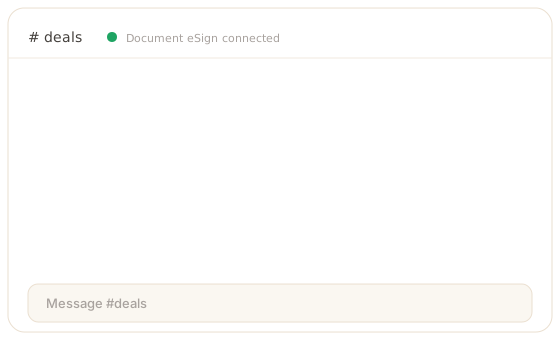
Status where your team already talks.
Slack becomes the live feed for your signing pipeline, so nobody has to ask whether a document came back.
Real-time notifications
The moment a document changes state, the update lands in Slack. Your team reacts to a signed contract without watching a queue.
Per-event channels
Route completions to one channel and declines or expiries to another, so the right people see the right events.
A link back to the document
Every message carries the document title and a link, so anyone can open it directly from the channel.
Six events you can post.
Turn each one on or off independently and point it at the channel that should hear about it.
Connect Slack in five steps.
An admin sets it up once for the whole workspace. It takes about a minute, and there is no code to write.
- 1
Open Settings, then Integrations
As a workspace admin, open Settings and go to Integrations. Slack is admin-managed, so one person connects it once for the whole workspace.
- 2
Click Connect on the Slack card
A popup opens Slack's authorization screen. There are no API keys, bot tokens, or webhook URLs to wire up by hand.
- 3
Authorize your workspace
Approve the Document eSign app and choose your Slack workspace. You are redirected back and the workspace is linked. Re-connecting later simply replaces the previous install.
- 4
Route each event to a channel
For every event - sent, viewed, signed, completed, declined, expired - pick the channel it posts to and toggle it on. Send completions to #deals and declines to #ops, whatever fits your team.
- 5
Send a test document
Send any document and watch the update land in the channel in real time. Disconnect from the same screen at any point to revoke access.
Scoped to notify, nothing more.
Outbound only
Document eSign posts into your channel. It never reads channel history or direct messages.
Titles and links, not contents
Messages carry the event type, the document title, and a link. The document contents are never shared to Slack.
Admin-managed, revocable
The connection is administered per workspace and can be disconnected in one click, which revokes the token.
Slack integration - FAQ
What does the Slack integration do?
It posts a message to a Slack channel whenever a document changes state. When a document is sent, viewed, signed, completed, declined, or expires, Document eSign drops a tidy message, with a link back to the document, into the channel you have chosen for that event. It keeps a sales, legal, or operations team informed without anyone refreshing a dashboard, and it is outbound only, so we never read your Slack messages.
How do I connect Slack?
An administrator connects Slack from workspace settings using OAuth. Click connect, approve the permission screen in Slack, and pick which channel should receive each event. The whole setup takes about a minute, there are no API keys to paste, and you can disconnect at any time, which revokes the token immediately.
Can different events go to different channels?
Yes. Routing is per event, so completions can go to a deals channel while declines and expiries go to an operations channel. Each event can be turned on or off independently, and each points at one channel. Routing is managed centrally by an administrator, so the whole workspace stays consistent rather than every person wiring up their own notifications.
Is the integration secure and private?
Yes. The connection is OAuth-based and outbound only: Document eSign posts messages into the channel you choose and never reads channel history or direct messages. Only the event type, the document title, and a link are shared, not the document contents. Access is administered per workspace and can be revoked in one click. Slack notifications are available from the Growth plan.
Signing updates, right in Slack.
Create a free account and connect Slack from settings. Choose a channel for each event and your team hears about every send, signature, and completion the moment it happens.