
Sign from your cloud, save back to it.
Pull a document straight from Google Drive, Dropbox, or OneDrive to send for signature, then mirror the signed copy back to your own cloud automatically. No downloading, no re-uploading, no forgetting to file it.
 Google Drive
 Dropbox
 OneDrive
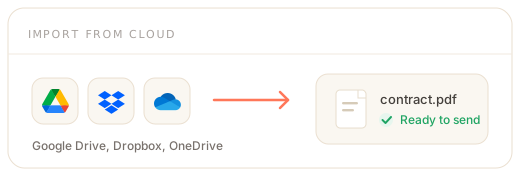
Import from Drive, Dropbox, OneDrive.
When you start a signature request, pick the file straight from your cloud instead of hunting for a download. Connect once with OAuth, then a native file picker lets you choose any document. Import is included on every plan, including Free.
- Native Google Drive, Dropbox, and OneDrive pickers
- Google Docs, Sheets, and Slides export to PDF automatically
- Only the file you pick is fetched, at the moment you pick it
- No downloading and re-uploading on the way in
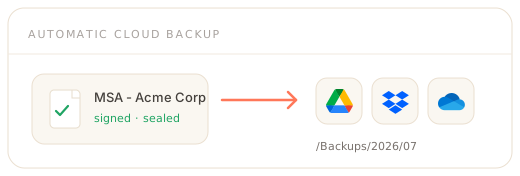
Signed copies saved back to your cloud.
Turn on automatic cloud backup and the finished document is written to your own cloud the instant it completes, with its audit certificate alongside. It runs in real time on completion and is swept on a schedule as a safety net. Automatic backup is available from the Business plan.
- Signed PDF and audit certificate mirrored on completion
- Google Drive, Dropbox, OneDrive, or your own Amazon S3
- Real-time on completion plus a scheduled sweep
- A durable record in storage you control
From cloud to signed, automatically.
The integration removes the two manual steps around signing: pulling the file in, and filing the signed copy away.
- 1
Connect once
Authorize Google Drive, Dropbox, or OneDrive with OAuth from your workspace settings. No keys or passwords.
- 2
Import and send
Pick a file from the cloud picker, place fields, and send for signature as usual.
- 3
Sign
Recipients sign in the browser. The document is sealed with a PAdES signature and audit trail.
- 4
Backed up
On completion, the signed PDF and certificate are written to a dated folder in your own cloud automatically.
Predictable, and under your control.
You decide where files land and stay in control of the connection.
Folder templating
Backups default to a dated path like /DocumentESign Backups/2026/07, and you can template it with year, month, day, document name, and id tokens.
Idempotent and retried
Each backup is keyed on the document and provider, so retries never duplicate. Failed uploads are queued and retried, not dropped.
Your account, your keys
Files are written into storage you own over an encrypted connection. Disconnect any provider at any time to revoke access.
Connected with OAuth, scoped to what it needs.
Every provider is connected with OAuth, so you never share a password and can revoke access in one click. Import retrieves only the file you pick. Backup writes only into the folder you choose. Cloud import is available on every plan; automatic cloud backup is available from the Business plan; pinning documents and backups to a US or EU region is an Enterprise capability. Documents stay yours and exportable at any time. Read more about how signatures stay legally binding.
Cloud storage integration - FAQ
Which cloud storage providers are supported?
Document eSign integrates with Google Drive, Dropbox, and OneDrive for importing documents, and with those same providers plus your own Amazon S3 bucket for automatic backup. You connect each provider once with OAuth from your workspace settings. A provider appears as an option once your administrator has connected it, and you can disconnect at any time to revoke access.
Can I sign a document that lives in Google Drive or Dropbox?
Yes. When you start a signature request you can pick a file directly from Google Drive, Dropbox, or OneDrive instead of uploading from your computer. We fetch that single file at the moment you select it and add it to your draft, converting Google Docs, Sheets, and Slides to PDF automatically. We do not browse or sync the rest of your drive; only the file you choose is retrieved.
Does the signed document get saved back to my cloud?
Yes, when automatic cloud backup is enabled. The moment a document is completed, we write the signed PDF, and optionally the audit certificate, into a folder in your own cloud account. It runs on completion in real time and is also swept on a schedule as a safety net, so your cloud always holds a durable copy without anyone remembering to download it. Automatic backup is available from the Business plan.
How are backup folders organised?
Backups go into a folder path you control, which defaults to a dated structure like /DocumentESign Backups/2026/07. You can template the path with tokens for the year, month, day, document name, and document id, so files land exactly where your team expects them. Missing folders are created automatically, and re-running a backup overwrites cleanly rather than creating duplicates.
Is the backup secure and reliable?
Yes. Backups are written over the provider's encrypted connection into your own account, and each job is idempotent, keyed on the document and provider, so a retry never produces a duplicate. Failed uploads are retried through a queue rather than dropped. Because the copy lives in storage you own, you keep an independent record even if you ever leave the platform.
Do I need cloud storage to use Document eSign?
No. Cloud storage is optional. You can upload documents from your computer and download signed files manually on any plan. The integration is there to remove the download-and-re-upload step on the way in, and the remember-to-save step on the way out, for teams that already keep their documents in Google Drive, Dropbox, or OneDrive.
Sign from the cloud, back to the cloud.
Create a free account and connect Google Drive, Dropbox, or OneDrive. Import on any plan, and turn on automatic backup from Business to mirror every signed file to your own storage.